Team DIY AI
Team DIY AI: Create Your AI
- Let's create AI freely with team members.
- It's a time to reflect on the thoughts of the team members and your own thoughts.
- Now, let's share our thoughts with our team members!
Create a team AI
Go outside and collect various photos of your surroundings
Using a robot to perform an AI program based on various photos
Derive results based on each model and various parameter modification results
Input and output are all included in the presentation material
Present the photos each person took
- The report evaluation criteria are as follows:
A+ : Write at least 30 photos
A : Write at least 25 photos
B+: Write at least 20 photos
Transfer the photos you took to the robot
How to transfer your own photos to a robot: 1. Move the photos you took to your laptop or PC. 2. Connect the robot to Wi-Fi. 3. Open cmd and go to the path where your photo is located. 4. In the case of example
C:\Users\zetabank\Desktop\Hustar\AI lecture material\photos
It is located on the path called.
- You can check currently existing photos by entering the dir command.
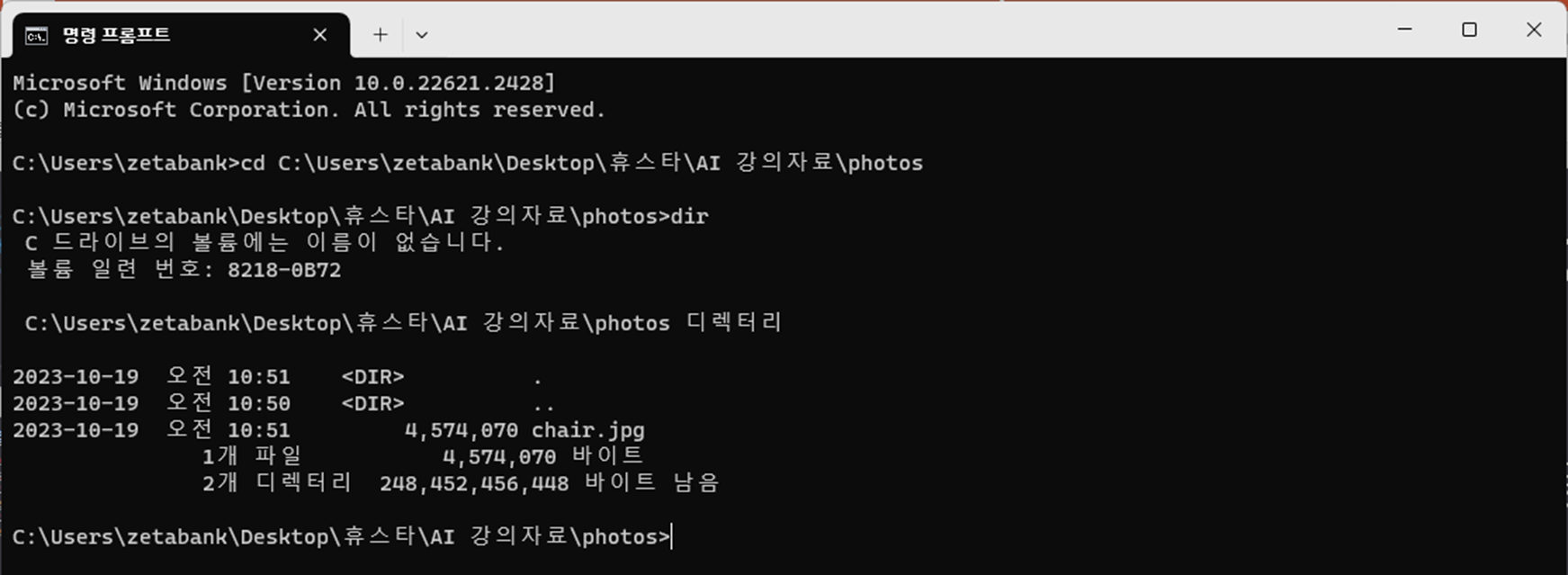
- Send photos using robot and communication commands
scp zeta@10.42.0.1:/home/zeta/jetson-inference/data/imagesWhen using the command, all files located in the current folder are copied
scp chair.jpg zeta@10.42.0.1:/home/zeta/jetson-inference/data/imagesOnly specific photos can be sent separately
When prompted to enter a password, enter 1 and click Enter.
Running an AI program on a photo robot
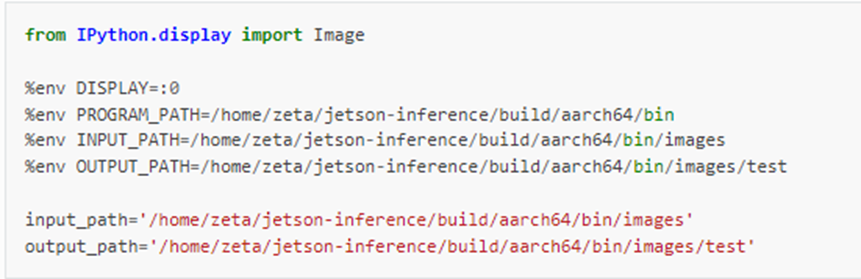
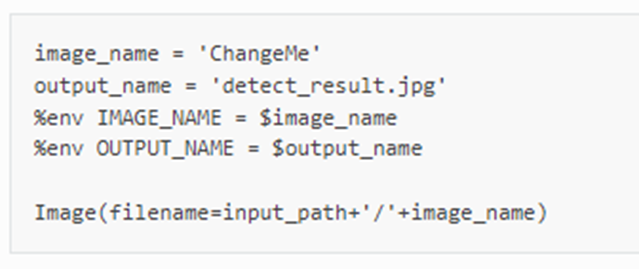
There is an input_path where the photo I sent is located.
There is output_path as a result of the program I ran.
As a result, the file location of the run program is becomes
/home/zeta/jetson-inference/data/images/test.By modifying output_name in the above program, you can set the name of the result you want (in the case above, set it to detect_result.jpg, but only in English)
Import AI result photos to PC

We knew the path to the photo on the previous page.
In cmd
scp zeta@10.42.0.1:/home/zeta/jetson-inference/data/images/test/detect_result.jpg .'When using the command, the file detect_result.jpg is copied and imported into the currently located folder.
scp zeta@10.42.0.1:/home/zeta/jetson-inference/data/images/test/* .When using the above command, all results so far are brought to the currently located folder.Password is also 1.
According to the above results, all result photos are imported to the path
C:\Users\zetabank\Desktop\Hustar\AI Lecture Materials\photos.