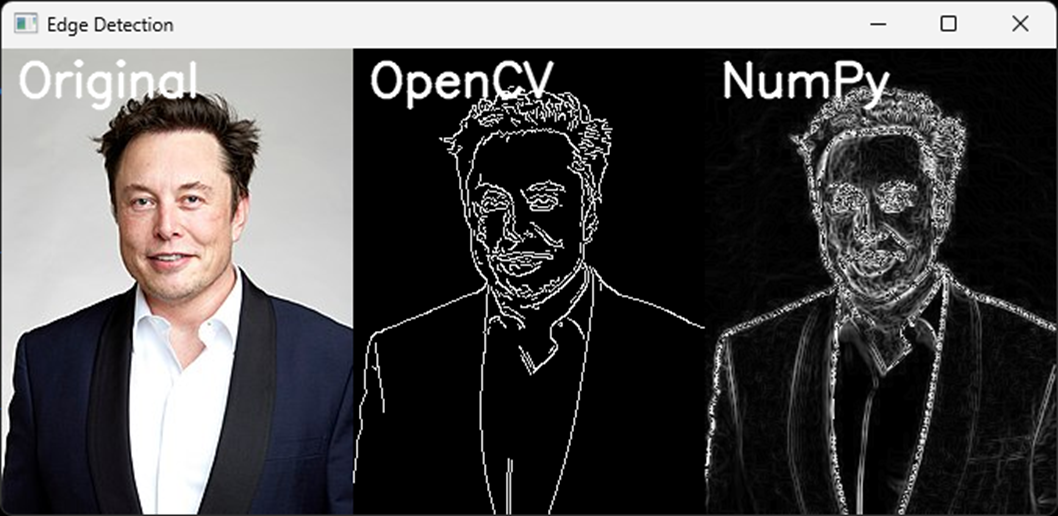
Edge Detection in Image File
Follow along: Edge Detection in Image File
The program launching process along with parameter settings are all simplified and set up on the Jupyter Notebook Environment.
- Create a new *.ipynb file Jupyter Notebook
- Fill in the content below in the newly created file
- Follow and Execute the example codes
(The Jetson Board used for these examples are => Jetson Nano)
3.edge.py
import cv2
import numpy as np

# Load an image
image = cv2.imread('image.jpg')

# Convert the image to grayscale
gray_image = cv2.cvtColor(image, cv2.COLOR_BGR2GRAY)

# Apply Canny edge detection using OpenCV
edges_cv2 = cv2.Canny(gray_image, 100, 200)

# Calculate gradients using Sobel operators and NumPy
sobel_x = cv2.Sobel(gray_image, cv2.CV_64F, 1, 0, ksize=3)
sobel_y = cv2.Sobel(gray_image, cv2.CV_64F, 0, 1, ksize=3)
magnitude = np.sqrt(sobel_x**2 + sobel_y**2).astype(np.uint8)

# Convert edge-detected images to 3 channels (BGR)
edges_cv2_bgr = cv2.cvtColor(edges_cv2, cv2.COLOR_GRAY2BGR)
magnitude_bgr = cv2.cvtColor(magnitude, cv2.COLOR_GRAY2BGR)

# Add text labels to the images
font = cv2.FONT_HERSHEY_SIMPLEX
cv2.putText(image, 'Original', (10, 30), font, 1, (255, 255, 255), 2, cv2.LINE_AA)
cv2.putText(edges_cv2_bgr, 'OpenCV', (10, 30), font, 1, (255, 255, 255), 2, cv2.LINE_AA)
cv2.putText(magnitude_bgr, 'NumPy', (10, 30), font, 1, (255, 255, 255), 2, cv2.LINE_AA)

# Combine the original image, OpenCV edge-detected image, and NumPy edge-detected image horizontally
combined_image = np.hstack((image, edges_cv2_bgr, magnitude_bgr))
# Display the combined images
cv2.imshow('Edge Detection', combined_image)
cv2.waitKey(0)
cv2.destroyAllWindows()
code progress
Load input image using OpenCV.
Convert image to grayscale using OpenCV.
Apply Canny edge detection to images using OpenCV’s ‘cv2.Canny()’.
Calculating horizontal and vertical gradients using OpenCV ‘cv2.Sobel()’ on an image with NumPy.
Combining gradients to calculate the magnitude of the gradient.
Display by adding a text label to each image.