Keyboard and Mouse Input Detection
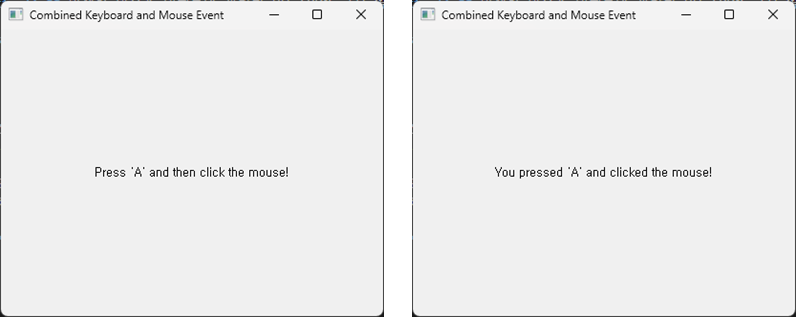
PyQt allows you to detect and handle keyboard and mouse events simultaneously. In this example, the on-screen message changes when the user presses the ‘A’ key and then clicks the mouse.
import sys
from PyQt5.QtWidgets import QApplication, QMainWindow, QLabel, QVBoxLayout, QWidget
from PyQt5.QtCore import Qt

class CombinedEventApp(QMainWindow):
    def __init__(self):
        super(CombinedEventApp, self).__init__()
        self.key_pressed = None
        self.a_clicked = False
        self.label = QLabel("Press 'A' and then click the mouse!", self)
        self.label.setAlignment(Qt.AlignCenter)

        layout = QVBoxLayout()
        layout.addWidget(self.label)

        container = QWidget()
        container.setLayout(layout)
        self.setCentralWidget(container)

        self.init_ui()

    def init_ui(self):
        self.setWindowTitle('Combined Keyboard and Mouse Event')
        self.setGeometry(100, 100, 400, 300)

    def keyPressEvent(self, event):
        if event.key() == Qt.Key_A:
            if not self.a_clicked:
                self.key_pressed = Qt.Key_A
                self.a_clicked = True
            else:
                self.key_pressed = None
                self.a_clicked = False
        else:
            self.key_pressed = None
            self.a_clicked = False

    def mousePressEvent(self, event):
        if self.key_pressed == Qt.Key_A:
            self.label.setText("You pressed 'A' and clicked the mouse!")
            self.key_pressed = None
        else:
            self.label.setText("Press 'A' and then click the mouse!")
        self.a_clicked = False
Explanation:
The key components of this example are the keyPressEvent and mousePressEvent functions:
keyPressEvent: This function detects keyboard events, changing the label’s text when the ‘A’ key is pressed.mousePressEvent: Detects mouse events. If the ‘A’ key is pressed when the mouse is clicked, the label’s text changes again.
Through these two functions, the behavior of simultaneously detecting and handling keyboard and mouse inputs is implemented.