How to Run C++ Code in Visual Studio Code

Open Visual Studio Code.

Go to the ‘Extensions’ tab, search for c++ and install the ‘C/C++ Extension Pack’.

Create a ‘hello_world.cpp’ file, write the code below, and save it.
#include <iostream>
#include <vector>
#include <string>

using namespace std;

int main()
{
    vector<string> msg {"Hello", "C++", "World", "from", "VS Code", "and the C++ extension!"};

    for (const string& word : msg)
    {
        cout << word << " ";
    }
    cout << endl;
}

Click ‘Run Build Task’ in the ‘Terminal’ tab. <Shortcut key: Control + Shift + B>

Build using g++.exe.
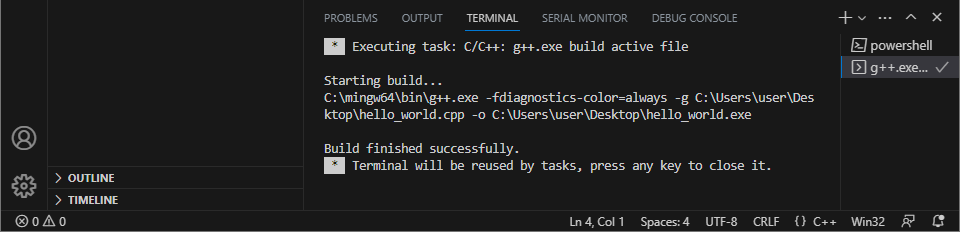
If the above message appears in the terminal, the build is successful.

You can also see that an .exe file with the same name as the .cpp file has been created.

Open a new terminal <Shortcut key: Control + Shift + `> and run the ‘.\hello_world.exe’ file.

If you get the above result, you have successfully run the example code.